
Add PowerSchool to Your Phone or Tablet (Web Version)

The PowerSchool App is developed and maintained by PowerSchool, and Calgary Academy does not have the ability to customize or modify the app to meet our specific needs.
To ensure reliable access to your student’s information, we recommend using the web version of the Parent PowerSchool Portal instead. This solution works for both Apple and Android devices, and you can add an icon to your phone just like an app.
While we continue to work with PowerSchool to find a solution for this issue, we hope this will serve as a solution for our families in the interim.
What to Do
- Remove the PowerSchool App from your device.
- Follow the steps below to create a shortcut to the web-based Parent PowerSchool Portal:
Android (Chrome Browser)
- Open Chrome on your Android phone or tablet.
- Go to the Calgary Academy Parent PowerSchool Portal.
- Tap the three dots menu in the top-right corner.
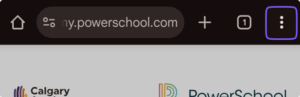
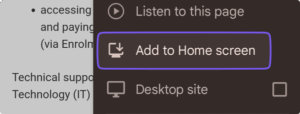
- Select Add to Home Screen.
- You can edit the name if you like (e.g., “PowerSchool CA”).
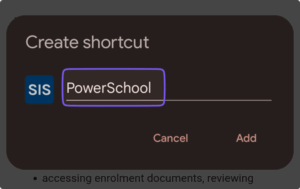
- Tap Add, then Add automatically (or drag it to your preferred spot).
- Make sure to save your password in the browser for quick access.
You’ll now see a PowerSchool app-style icon on your home screen. Tapping it will open PowerSchool directly in a full-screen web view—just like a native app.
iPhone / iPad (Safari Browser)
- Open Safari on your iPhone or iPad.
- Go to the Calgary Academy Parent PowerSchool Portal.
- Tap the Share icon (the square with an arrow pointing up) at the bottom of the screen.
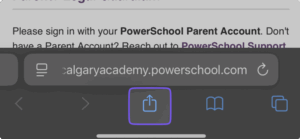
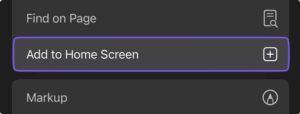
- Scroll down and tap Add to Home Screen.
- You can rename it (e.g., “PowerSchool CA”) if desired.
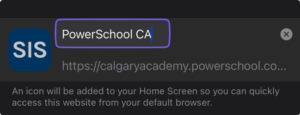
- Tap Add in the top-right corner.
- Make sure to save your password in the browser for quick access.
A PowerSchool icon will appear on your home screen. It behaves like an app, opening directly to the site in Safari without needing to re-enter the address.